開発用のフォルダを作成し、そこをカレントディレクトリとして VSCode を起動する。
~ % cd ~/Desktop~/Desktop % mkdir electron-test~/Desktop % cd electron-test~/Desktop/electron-test % code .zsh: command not found: code
ありゃ?パスが通ってない?
パスを通すには、VSCode を使って登録するのが一番簡単である。
まず、アプリケーションフォルダの Visual Studio Code.app を実行。それから Shift + Command + P で検索バー(コマンドパレット)を表示。
「shell command」と入力してコマンド候補が表示されるので、
Shell Command: install 'code' and optionally 'copilot' command in PATH
※ copilot を使ってない場合は、and optionally 'copilot' は表示してないかも
を選択して実行。これでパスが通る。実際はどこかのファイルに実際のパス(/Applications/Visual Studio Code.app/Contents/Resources/app/bin/code)が登録されたわけではなく、これ、/usr/local/bin の下に code のシンボリックリンク(Windows で言うショートカット、macOS のエイリアスと一緒)が作られている。
~/Desktop/electron-test % ls -la /usr/local/bin/codelrwxr-xr-x 1 root wheel 68 10月 24 20:43 /usr/local/bin/code -> /Applications/Visual Studio Code.app/Contents/Resources/app/bin/code
/usr/local/bin は元々コマンド入力時の検索パスに入っているので、これでどこで 'code' と入力しても、ちゃんと VSCode が起動するようになる。
VSCode が起動したら、早速そこでターミナルを開き(Shift + Command + P で検索バーを開き「Terminal: Create New Terminal」を選択、実行)、そこで、npm init -y を実行。
~/Desktop/electron-test % npm init -y},"keywords": [],"type": "commonjs"}
フォルダに package.json というファイルが作成される。
次に、このフォルダに Electron をインストールする。
~/Desktop/electron-test % npm install electron --save-devadded 13 packages, and audited 14 packages in 1s1 package is looking for fundingrun `npm fund` for detailsfound 0 vulnerabilities
ちゃんと入った。フォルダの下(って言うのは DOS 時代の名残か(笑)。Windows や Mac で最初から「フォルダ」生活の人たちは「下」じゃなく「中」って言うのよね(笑))に node_modules フォルダなどができているはず。
これで開発の準備はできたので、次に main.js というファイルを作成。VSCode のエクスプローラー窓で右ボタンメニューを開き「新しいファイル...」を選択。ファイル名を main.js にする。
【main.js】const { app, BrowserWindow } = require('electron')function createWindow () {const win = new BrowserWindow({width: 800,height: 600})win.loadFile('index.html')}app.whenReady().then(() => {createWindow()app.on('activate', () => {if (BrowserWindow.getAllWindows().length === 0) createWindow()})})// ウィンドウがすべて閉じられたときの挙動// Windows や UNIX系の Window システムならアプリも終了// Mac(darwin)なら窓を全て閉じてもアプリは生かしておく(Mac的な動き)app.on('window-all-closed', () => {if (process.platform !== 'darwin') app.quit()})
同じように index.html を作成。
【index.html】<!DOCTYPE html><html><head><meta charset="UTF-8"><title>Electronアプリ</title></head><body><h1 style="text-align: center; margin-top: 50px;">★見事に起動成功!(笑)</h1></body></html>
最後に、package.json を以下のように修正。
【package.json】{"name": "electron-test","version": "1.0.0","description": "","main": "main.js","scripts": {"start": "electron ."},"keywords": [],"type": "commonjs","devDependencies": {"electron": "^45.0.0"}}
ここまで作ったら実行してみる。
ターミナルのコマンドラインから実行。
~/Desktop/electron-test % npm startDebugger attached.npm notice run electron-test@1.0.0 startnpm notice run electron .Debugger attached.Downloading Electron binary...Debugger attached.Waiting for the debugger to disconnect...Debugger attached.
最初の1回目はちょっと起動まで時間がかかるが、無事画面が表示された。成功。
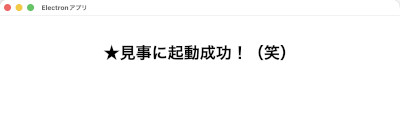
これが一番シンプルな Electron のプログラム。
電気ウナギ的○○
About Backコメント(0)
電気ウナギ的○○